It was a late night. I still feel exhausted. Still, I must continue. I have a few previous issues I’d like to address.
- Change the color of the selected index
- 🧑💻 Verify reading/writing correct pixels
- Create simple geometric shapes
- Squished cube swapping between unused pixel formats
- ✅ Hex value of model data is showing 0x000 instead of 0x000000
- Export geometry
- ✅ PNG – image
- ✅ OBJ – 3D object
- ✅ glTF – WebGL
- ✅ STL – 3D Printer
- Morph between models
- Wire up transformation controls on a vector
- Dynamic Textures
- Face Direction
- Face Density
- Model Data
Dynamic Textures
I also had an idea that generating a dynamic texture to help me identify “sides”, or at least the direction that a face is facing would be helpful in texturing. It’s sort of like unpacking UV textures, but in reverse. The UV mapping is intentionally fixed on the vertices, so the end user doesn’t have control over the UV mapping itself. However, a guide based on the current models geometry may go a long way. In addition, I can use the alpha channel to reveal hidden faces where two or more vertices share the same location. It would be black at the top fading into a 360 hue in the middle and fading into white at the bottom. A cube would have a wide black rectangle at the top of the texture, a wide white rectangle at the bottom, and four distinct rectangles across the middle. If the cube has hard edges to survive NURBS, it would have some transparency between each colored section.
I could also create a different texture as well that’s like a heat map that tells me how dense an area is on the texture by getting an average distance of all vertices that connect to a vertex. Or just do it for faces instead to find faces with the min/max amount of area (ignoring faces with no area), and using the median value as the average. Red for dense (small), Blue for sparse (large) and white/grey for average. It would be a visual aide in vertex placement to even out the texture.
Another texture would simply be to show something similar to the models original image where each vertex is colored accordingly to its placement.
Low hanging fruit
The easiest thing may be to just download the geometry as an image. Let’s wire that up. No one said it has to be pretty.

That was almost too easy to export the image.
function exportImage() {
  const dataURL = canvas2D.toDataURL();
  const link = document.createElement('a');
  link.href = dataURL;
  const imageSelector = document.getElementById('image-selector');
  link.download = imageSelector.value;
  link.click();
}
I added a timestamp to the beginning of the file so I could tell which one was the latest that I created. Looking at the files, I noticed something. My selected pixel frame was appearing at the top center. Oops. We can’t have that. It looks like I’ll have to redraw the image.

function exportImage() {
  // redraw canvas without selected vertex
  updateModelDataUnusedPixels();
  applyVectorsToModelDataImage();

  const dataURL = canvas2D.toDataURL();
  const link = document.createElement('a');
  link.href = dataURL;
  const imageSelector = document.getElementById('image-selector');
  link.download = new Date().toLocaleString() + ' ' + imageSelector.value;
  link.click();

  // display selected vertex
  highlightVertex();
}
Next are the WebGL files. I only want the model itself. Not the entire scene. Let’s see what that entails. Again, it was simple. I centralized my file name logic so I could pass it a file extension and call it from either function.
import { GLTFExporter } from 'three/addons/exporters/GLTFExporter.js';
function exportGltf() {
  const gltfExporter = new GLTFExporter();
  gltfExporter.parse(modelObject, function (gltf) {
    const data = JSON.stringify(gltf, null, 2);
    const blob = new Blob([data], { type: 'text/plain' });
    const url = URL.createObjectURL(blob);
    const link = document.createElement('a');
    link.href = url;
    link.download = fileName('gltf');
    link.click();
  });
}
function fileName(ext) {
  const imageSelector = document.getElementById('image-selector');
  const name = imageSelector.value.replace(/\.[^.]+$/i, '.');
  return new Date().toLocaleString() + ' ' + name + ext;
}
I got a file, but a warning as well. THREE.GLTFExporter: Creating normalized normal attribute from the non-normalized one. I wonder what that is about. I computed normals on the object in order to receive light. Anyway – did it work? Over to Blender we go! And, I’m not seeing the file to import. Let’s see if I’m doing this correctly. File > Import > glTF 2.0 (.glb/.gltf).

Well, I added the correct file extension to my file. Wait… why is .txt appended to my file name?

Looking at my file name function, I removed everything after the last period – including the period! I updated my code (on this document as well). That was an easy fix. I’m now able to see the file and import it into Blender.


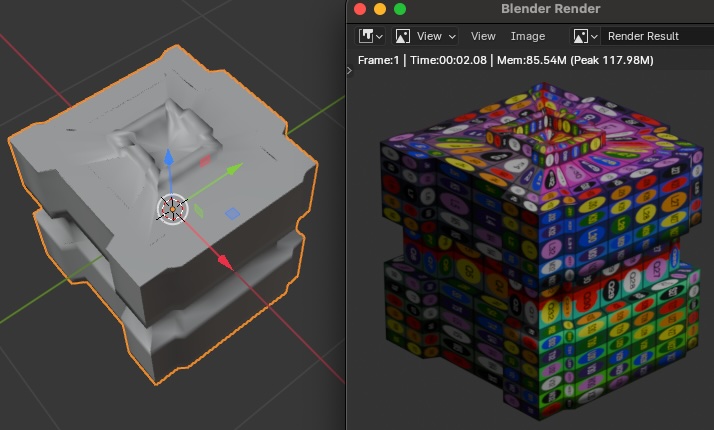
Where are my textures? I thought it was supposed to include textures. It looks like there is an extra option for it. I added the ability to include them, imported the new file and – nothing. I had the same dull grey image. Surely they were included. Maybe they only show up during rendering? Render > Render Image... and I got it!

The rendering looks so much better than my web version. Let’s see if blender supports displaying textures when modeling. I found a few ways to do it. The main one being Material Preview – but it’s a tiny icon of a ball. It wasn’t intuitive.

Another option is to use the Texture Paint tab. Wow! I’ve already done something similar to paint in 3D, but this is better. I’m noticing that my texture is flipped vertically. This is a problem. My intent is to have the texture appear in the same orientation as the original image. Here is a preview with large cells for texture alignment.

This seems to be a trivial issue for now. Lets move onto the binary export of WebGL with the GLB extension. It was sort of strait forward. It uses the same class to export glTF, but an option is passed to flag as binary output. I reused the same function and made a few changes.
function exportGltf(binary) {
  const gltfExporter = new GLTFExporter();
  const options = {
    includeTextures: includeTextures(),
    binary
  }
  function success(result) {
    let blob;
    if(result instanceof ArrayBuffer) {
      blob = new Blob([result], { type: 'model/gltf-binary' });
    }
    else {
      const data = JSON.stringify(result, null, 2);
      blob = new Blob([data], { type: 'text/plain' });
    }
    const url = URL.createObjectURL(blob);
    const link = document.createElement('a');
    link.href = url;
    link.download = fileName(binary ? 'glb' : 'gltf');
    link.click();
  }
  function failed(error) {
    console.error('Failed to export GLTF', error);
  }
  gltfExporter.parse(modelObject, success, failed, options);
}
Lets try the old Wavefront OBJ format next. There is an exporter obj example for it. It was simple to export. I noticed a GUI that called their vertices a point cloud. I may go ahead and rename my vertices to the same.
import { OBJExporter } from 'three/addons/exporters/OBJExporter.js';
function exportObj() {
  const exporter = new OBJExporter();
  const data = exporter.parse(modelObject);
  const blob = new Blob([data], { type: 'text/plain' });
  const url = URL.createObjectURL(blob);
  const link = document.createElement('a');
  link.href = url;
  link.download = fileName('obj');
  link.click();
}
The object exporter is bare-bones. It doesn’t even include UV mapping. Let’s address that. Time to add the texture coordinates. The Wavefront .obj file format on Wikipedia exports UV as a list of coordinates prefixed with vt.
I’ve added the texture coordinates, but I’m uncertain if they are applied correctly. I’m looking at Blender, and I’m uncertain how to tell where the UV mapping is. When I add a material, is it re-adjusting accordingly? I’m just very unfamiliar with the software. I think the next step is to include the material. OBJ files don’t include the material directly. You reference both a material library file, and the image. I’ve generated some files, but I’m unable to get the browser to download any additional file after the first one.
function exportObj() {
  const exporter = new OBJExporter();
  let data = exporter.parse(modelObject);

  // UV mapping
  const uvCoordinates = [];
  const uvArray = modelObject.geometry.attributes.uv.array;
  uvArray.forEach((uv, i) => {
    if(i % 2 === 0) {
      const u = uv.toFixed(6);
      const v = uvArray[i+1].toFixed(6);
      uvCoordinates.push(`vt ${u} ${v}`);
    }
  });
  data += "\n\n# UV Coordinates\n"
  data += uvCoordinates.join('\n');
  data += "\n";

  const textureFile = fileName('png');
  const materialFile = fileName('mtl');
  const objectFile = fileName('obj');

  if(includeTextures()) {
    data += "\n\n# Texture\n";
    data += `mtllib ${materialFile}\n`;
    data += `usemtl texture\n`;
    data += `map_Kd ${textureFile}\n`;
  }

  downloadBlobAsFile(objectFile, 'text/plain', data);

  if(includeTextures()) {
    downloadCanvasAsFile(
      textureFile,
      'image/png',
      document.getElementById('texture-preview')
    );

    let material = '';
    material += `newmtl texture\n`;
    material += `map_Kd ${textureFile}\n`;

    downloadBlobAsFile(
      materialFile,
      'text/plain',
      material
    );
  }
}
function downloadCanvasAsFile(fileName, contentType, canvas) {
  downloadUrlAsFile(fileName, canvas.toDataURL(contentType));
}
function downloadBlobAsFile(fileName, contentType, data) {
  const blob = new Blob([data], { type: contentType });
  const url = URL.createObjectURL(blob);
  downloadUrlAsFile(fileName, url);
}
function downloadUrlAsFile(fileName, url) {
  const link = document.createElement('a');
  document.body.appendChild(link);
  link.href = url;
  link.download = fileName;
  link.click();
  document.body.removeChild(link);
}
I’m not sure if its a security issue to prevent people from being swamped with file downloads. Well… I feel silly. Here is the problem. I forgot to return if the user checked the box to export textures.
function includeTextures() {
  document.getElementById('export-texture').checked
}
And here is the security concern I had being addressed by the browser.

Now that I have my OBJ file, material template library, and texture, Its time to import into blender. The model is no longer grey, and its not textured either. Instead I have a Magenta colored model.

That was unexpected. Where did that color come from? I’m wondering if its due to the characters in my file name. The downloaded file name on my hard drive did not preserve the same characters. My material file shows slashes in the file name for the date:
newmtl texture
map_Kd 4/25/2024, 3:45:22 PM UFO Sculpty 1.0.png
File names are now sanitized, but the object still imports as Magenta. I found some insight. On the menu, clicking File > External Data > Report Missing Files showed a brief message in the status bar. Clicking on it brought up a Blender Info Log stating Path '/Users/lewismoten/Downloads/4/25/2024, 3:45:22 PM UFO Sculpty 1.0.png' not found – ok… didn’t I sanitize the file names? It’s even saving as 4_25_2024 UFO Sculpty 1.0.ml – and where did the time info run off to when I did the sanitizing?
The object file looks fine. I see this at the end
# Texture
mtllib 4_25_2024 UFO Sculpty 1.0.mtl
usemtl texture
The material file looks fine…
newmtl texture
map_Kd 4_25_2024 UFO Sculpty 1.0.png
Where is Blender getting this old file name? I created a new scene and imported the object and still see problems. I fixed the file name. Apparently I had it set to toLocaleDateString instead of toLocaleString. Importing the file, I realized the files were organized by name instead of date created, so I was importing an older file. With all of that, guess what? I imported the OBJ file with a texture!

The texture is in the correct orientation – but why is it wide? Looking at the downloaded texture, it is wide as well. 300×150 to be exact. My textures should be a power of 2, and they were square. The texture preview canvas appears as only 64×64 with css styles, but its actually bigger. It turns out that I wasn’t resizing the canvas when I loaded new textures. Here is the updated code to load a texture with the correct width/height.
function drawTexturePreview(image) {
  const texturePreview = document.getElementById('texture-preview');
  texturePreview.width = image.width;
  texturePreview.height = image.height;
  const ctx = texturePreview.getContext('2d');
  ctx.clearRect(0, 0, texturePreview.width, texturePreview.height);
  ctx.drawImage(image, 0, 0, texturePreview.width, texturePreview.height);
}
Now that we are done with Wavefront Objects, I’m wondering… what about STL? Simple! I was able to import the file into TinkerCAD.

import { STLExporter } from 'three/addons/exporters/STLExporter.js';
function exportStl() {
  const exporter = new STLExporter();
  const options = {
    binary: true
  };
  const data = exporter.parse(modelObject, options);
  downloadBlobAsFile(fileName('stl'), 'model/stl', data);
}
STL is a very simple file format. It only consists of geometry, so there is no need for including textures.
As for the image export – I could set it up to include the selected texture for the unused pixels, so that it doubles as both the object and texture. Dots would be seen though. I could give the option to export with a larger image to reduce the overall size of the dots. As an added feature, I can make the dots transparent.

Let’s try it out. Uh oh.


It looks like my pixels are off. Is it because it’s a larger 128×128 image? Lets try the standard 64×64 to confirm. 64×64 works. Pretty cool to look at it with its own texture.


I’m thinking that maybe the vertical offset only applies to textures of 64×64, or gets downsampling applied to it as well. There is an easy way to find out. We can try some brute force to test different offsets for the larger images.
That… was… ted…i…ous. I reworked my offset logic and stepped through 0x1, 0x1, 1×1, 0x1, 0x2, 1×2, 2×2, 1×2, 0x2, 0x3, 1×3, 2×3, 3×3… of course, not in that order. My downloads folder had so many files, it was difficult to keep track of what the latest ones were. What works is a vertical offset of 3 for 128×128 textures.


I suspect 256 is 7, 512 is 15, and 1024 is 31. Your simply packing on more bits.
| Size | Offset | Binary | Works | Supported | Lossless |
|---|---|---|---|---|---|
| 32×32 | 0 | 00000 | No | Yes | |
| 64×64 | 1 | 00001 | Yes | Yes | Yes |
| 128×128 | 3 | 00011 | Yes | Yes | Yes |
| 256×256 | 7 | 00111 | Yes | Yes | No |
| 512×512 | 15 | 01111 | Yes | Yes | No |
| 1024×1024 | 31 | 11111 | Yes | Yes | No |
I just tried a 256×256 with an offset of 7. I wasn’t sure, but it seemed okay in the previewer, but was a mess when rezzed.

I may need an option to output images to a different size then what was read. It would let me put higher quality textures onto my old UFO’s, or save as smaller image sizes to cut down on the file size. If the unused pixels are not being used for anything, then my opinion is that the 64×64 image size should be used to save space.
Collada Export
Before doing that – back to exporting. Second Life now supports Mesh Objects. Uploading OBJ or glTF isn’t recognized. Let’s look at exporting to COLLADA.
It looks like it used to be included with three.js, but the Collada exporter was removed in v153. I found an old node package lens-collada-exporter ( GitHub: collada-exporter-js), but it has been deprecated since it was included in three.js. With only one weekly download, I don’t think I want to touch it. I’m starting to get the impression that COLLADA isn’t really popular – or at least, GLTF may have superseded it.
Let’s take a look at version 153 of three.js. We are currently sitting at 164. I don’t see anything mentioned about COLLADA or the DAE file extension. Checking the Migration Guide… WebGL 1 support was deprecated (to be removed in 163) and – oh yea. It says ColladaExporter has been removed. Why is that? 1492 commits… this is a bit brutal trying to search via the web interface. I can only load up a few at a time. Time to GitKraken on the repo.
Forking was simple enough. The wait to clone everything is taking a while. The repository is large. 42,182 commits.

Hmm… no tags to search on. Lets find the hash for 153. One sec, I looked at files changed and found the collada loader was deleted examples/jsm/loaders/ColladaLoader.js. It doesn’t have a commit hash associated with the delete operation. Now I know the file to look for. Back to GitKraken. I found a change to the file “Remove unused collada constructor (#27119)”. That’s something. I can now look at the history of the file.
Wait – I’m going off track. I’m not looking for the loader. I need the exporter. Here we go. docs: remove ColladaExporter document (#26592) The GitHub issue #26592 says collada exporter was removed since 973d751. The commit just says Examples: Removed misc_exporter_collada. Why? Their isn’t even an issue associated with it. Issue #26241 shows errors as a result and points to the commit hash, but the response to the fix mentioned only that it was removed. No reason as to why.
Let’s see if I can get an answer from ChatGPT
The Collada exporter was removed from the Three.js library for several reasons:
- Maintenance and Compatibility Concerns: Maintaining support for exporting to the Collada format required significant effort, as Collada is a complex and feature-rich format with various capabilities. Ensuring compatibility with the evolving Collada specifications and different software implementations was challenging.
- Performance and Efficiency: Collada files can be verbose and inefficient, especially for large and complex scenes. Exporting to Collada could result in larger file sizes and slower export times compared to more modern formats like GLTF, which are optimized for efficiency and performance.
- Focus on GLTF: GLTF (GL Transmission Format) emerged as a more modern and widely adopted format for 3D asset interchange, especially for real-time applications like web-based 3D graphics, virtual/augmented reality, and games. GLTF offers better performance, smaller file sizes, and more efficient workflows compared to Collada.
- Community Usage and Feedback: The decision to remove the Collada exporter was also influenced by feedback and usage patterns from the Three.js community. The community’s preference for GLTF and other modern formats, along with the decreasing usage of Collada, contributed to the decision to deprecate and remove the Collada exporter.
Overall, the removal of the Collada exporter from Three.js was a strategic decision to streamline the library, focus on more efficient and widely supported formats like GLTF, and allocate development resources more effectively to meet the needs of the community.
Take that with a grain of salt, as it may have just been making something up to fill in a reasonable response.
So with the open source community focusing more on WebGL (especially for a web-based rendering engine), it makes me wonder why the Second Life viewer doesn’t support other file formats besides Collada. It couldn’t even recognize a basic OBJ file – and that’s pretty much the oldest format in the book. I’m of the opinion that if someone needs the Collada file format, they can use the WebGL or OBJ files as a source. I can import both into Blender and export as a COLLADA file without adding any plugins.

And there we go. An imported sculpted prim. There are a few things to note. The cost to upload is L$ 11 (model + instance). A sculpted prim image costs L$ 10. I don’t know what “instances” are. There is also a physics cost of 5.64. A sculpted prim only counts as one object. The mesh counts as 5.6 objects. That’s a pretty high cost. The good parts I see is that the object rezzed immediately when I dragged it into the world. For sculpted prims, I have to apply the texture, close the client, open the client, and log in before I can see the sculpted object. Sometimes its as simple as deselecting and reselecting the object again. Sculpted Prims feel a bit buggy to me. Looking at the advanced details, it appears that the land impact is rounded up to 6 for the mesh. Look at the comparisons between the two and ignore the texture quality – that’s a separate issue/cost.


So if you want to save on finances and land impacts, sculpted prims still have a case. But – mesh is more powerful. You’ve got more control over the exact number of vertices. You are not wasting vertices to create hard edges when fighting with NURBS. It would have been ideal if they just gave you a checkbox to determine if a sculpted prim should be organic to toggle NURBS.
Export Image Size
Now lets get back to our file size of the exported sculpted prim image. I want to choose between 32, 64, 128, 256, 512, and 1024. Those are the powers of 2 supported on the Second Life asset server. Let’s mock up a simple UI to change the saved image size.

So I wired everything up. Changed my UFO file size to save as 64×64 and … I got a 128×128 sized image. Where did I go wrong? Well – it would help if I actually saved the new temp canvas instead of the model canvas. Now I’m downloading an image of the correct size, but it’s transparent. Do I need to fill it first? Yes. Apparently the alpha values are all transparent when the canvas is first initialized. I still need to revisit that at a later time.
Now that I can change my target output size, I need to change the vertical offsets accordingly.

I got the correct vertical offset for 256×256 images. Something is off with at least two vertices. I suspect they are the poles. I’m also noticing that lossless compression is disabled for this file size. This means I may have significant corruption of model data and vertices may be in unexpected places. For any image above 128 pixels, the lossless formatting is disabled. Let’s try a larger image. 512 looked the same as 256. Going for 1024… yep! Looks the same.
Looking at the 1024×1024 texture, I’m noticing some strange patterns. The data is being written in places that it shouldn’t. I’ve got extra dots, and I’ve got matching lines above them at the very top of the image, but not at the bottom. This is specific to a function called isImageXyVertex returning true when it shouldn’t.

Well – it seems to think a 1024×1024 image has 14,049 vertices. A standard 64×64 image reports 3,169 coordinates. There should be no more than 1,024. Let’s start to debug this… None of them have y = 0. That’s a pole. We should have x = 32. y = 1 – yes, We have 32 where x = 0. That isn’t rite. I need to be unique on my collector. Ok, now a 64×64 image is down to 2,049 unique coordinates. And my earlier evaluation was a blunder. I was filter y = 1 instead of y === 1 – thereby assigning the value of y to everything.
Ok, when y is 1 to 63 (step 2) then x = 0 to 62 (step 2). That looks mostly good except that the poles are missing. Lets step up to 128 and see what happened.
| Size | Vertices | Values |
|---|---|---|
| 64×64 | 2,049 | y = 1 to 63, step 2 x = 0 to 62, step 2 |
| 128×128 | 2,113 | y = 1, 2 and 3 to 127, step 4 x = 0 to 124, step 4 |
I’m starting to see the pattern causing lines to form at the top of images. My vertical offset code is subtracting instead of adding. That could be the problem. It wasn’t noticeable when the offset was only 1 since the pole data was used, but now its revealing itself. And why isn’t the center x pixel being returned when Y = 0?
function isImageXyVertex(x, y, options) {
  const offset = getOffset(options);
  // Top/bottom poles
  if(y === 0 || y === height - 1) return x === Math.floor(width / 2);
  // verticalOffset
  y -= offset.y;
  x -= offset.x;
Well, I just noticed it. width is a global variable tied to the original model data image – not the saved image with a different size.
I’m going down a rabbit hole. I need to create a separate branch, save my changes, and go back to the main branch and start over. I think this project is getting too big for one file. I was just a simple experiment, but its turning into a full blown application. It’s close to 2,400 lines of code with pure javascript. I could turn it into a React app with typescript and bundle it with webpack. That’s going to take some time to convert over to a proper project.
I’m about to start working on the daily video. As a recap, I fixed a small bug with hex values displaying without padding. I exported to various 3D modeling formats (OBJ, glTF, glb, STL). I got the original model to export to different image sizes as PNG files. I found out that the different image sizes have different vertical offsets. I’m currently working on a problem where the pixels identified as vertex pixels are not always vertex pixels. There also seems to be a problem with the top and bottom poles.