Most of the day has been fighting with the different offsets for reading and writing files for my models that conform to the Second Life specification for Sculpted Prims. I’ve gotten to the point where all of my models are assembled again, which was a feat in itself. A lot of the code has been refactored so that only a few places read and write data to those specific parts of the file. I’ve still got a problem where some of the geometry isn’t loaded.
Part of it has been writing a lot of debug information on the console, or making it available on the UI via tooltips. One of them shows all of the x/y coordinates that were read in the image.

The other shows how the index from 0 to 993 maps to rows and columns in the vector grid, which can be traced back to the original image coordinates. (The infamous spherical index function)

Other than that, I’ve been taking a break from it. I’ve been working on dynamic maps to troubleshoot the models loading and to meet the demands of my curiosity. The first one just creates a generic block texture of the data and applies it to the model. It’s pretty simple and often one of the first things people do when they create a sculpted prim in Second Life. At least, that’s what I did. It revealed a problem immediately when I turned on the point cloud. My texture wasn’t aligned properly with the point cloud colors – or it may be that I didn’t build the geometry correctly.

I noticed that there is also a large black line going up the side except for a square cell. That’s a pole! The texture is 90 degrees off. This is a familiar bug. It’s a good thing my UI lets me rotate the texture as it revealed another problem. The texture is flipped! When I rotate the texture 90 degrees, the yellow portion goes to the top of the model when all of the yellow bits in the point cloud are underneath the model.


The other thing I did was work on a UV & Face Density Map. Since the UV map is tied to the faces, it works as both. I used the triangle index function that I made to create my original geometry. I mapped everything to vectors, calculated the area of each triangle, and grabbed the min/max and median values. I then mapped everything back to the original 2D image to figure out how to draw triangles on the canvas in the correct places. Well – it didn’t exactly work. It did and it didn’t. The end result was a lot of slants.


I created some high resolution textures at 4096×4096 to see the hard edges better when I zoomed in. I see a few issues. First, the obvious one is that my texture is rotated. Another problem is that everything is at an angle. I appear to be missing lots of triangles overall. Last, the area calculation seems to be off – or it’s my x/y coordinates since I have a large triangle that should either be the lightest or darkest color on the image.
I added a check so that if any triangle index matches another for the same face, I exclude that triangle from the density map. It would end up with an area of zero. I then realized that although I may have different indexes, I could still have the same coordinates at those positions. I went ahead and added a vector compare function just to make sure they didn’t match. My triangles went from 1,984 down to 1854, and my minimum area went from 0 to 0.0000461. Awesome! What’s even better is that I started to see the top pole triangles appear at the top of my image map. They remind me of sharks.

function vectorsAreEqual(vector1, vector2) {
  return vector1.x === vector2.x &&
    vector1.y === vector2.y &&
    vector1.z === vector2.z;
}
  for(let i = 0; i < trianglePositionIndexes.length; i+= 3) {
    const index1 = trianglePositionIndexes[i];
    const index2 = trianglePositionIndexes[i + 1];
    const index3 = trianglePositionIndexes[i + 2];

    if(index1 === index2 || index1 === index3 || index2 === index3) {
      // no area
      continue;
    }

    const vector1 = vectors[index1];
    const vector2 = vectors[index2];
    const vector3 = vectors[index3];
    if(
      vectorsAreEqual(vector1, vector2) ||
      vectorsAreEqual(vector1, vector3) ||
      vectorsAreEqual(vector2, vector3)
    ) {
      // no area
      continue;
    }
// Do more stuff
}
There is still something seriously off with my image map. Why are faces stretched across the entire image at a diagonal? A hah! My logic to check the stitching was incorrect. I tried to skip anything that crossed the right side to the left (the hidden column). My texture map appears with lots of triangles lined up in perfect squares.

Since the bottom of the UFO is tiny, the black area represents faces that are very small. I’m a bit confused about some of the colors as there should be large areas for the main “dish” that are larger faces than the rest. What concerns me the most is the row of triangles that switch between white and dark grey. They should all be fairly uniform on the same column. I think my weights may be off.
function getWeight(value, {min, max, median}) {
  if(value < median) {
    const range = median - min;
    const v = value - min;
    return v / range;
  } else {
    const range = max - median;
    const v = value - median;
    return 0.5 + ((v / range) * 0.5);
  }
}
The goal isn’t to just get a percentage value between min and max, but to base it off the median. If i have numbers 4, 5, 6, 7, 8, 9, 1000 – everything is going to be close to black except for 1000 at white. In this case, 7 is the median value. This lets me get an even distribution from 4 to 7 (0 to 50%) and then numbers 8 and 9 would appear grey before going to 1000 at white.
So what is wrong with my code? I see it. Although I caught on that I needed to divide the range by half before adding 0.5 if the value was above the median value, I didn’t multiply it by half for the other condition.
function getWeight(value, {min, max, median}) {
  const SEGMENT_SIZE = 0.5;
  if(value < median) {
    const range = median - min;
    const v = value - min;
    return (v / range) * SEGMENT_SIZE;
  } else {
    const range = max - median;
    const v = value - median;
    return SEGMENT_SIZE + ((v / range) * SEGMENT_SIZE);
  }
}
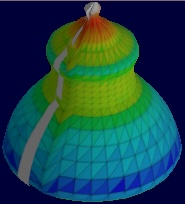
Well, that was all fine. It worked. I decided rather than stick with grey – why not do with a colorful heat map? Just for fun I added the ability to flip the texture so that I could see everything line up.

  // get min/max/median
const min = areas.reduce((min, area) => area === 0 ? min : Math.min(min, area), Infinity);
const max = areas.reduce((max, area) => area === 0 ? max : Math.max(max, area), -Infinity);
const median = areas.slice().sort((a, b) => a-b)[Math.floor(areas.length/2)];
for(let i = 0; i < trianglesXy.length; i++) {
  const [xy1, xy2, xy3] = trianglesXy[i];
  const area = areas[i];
  const weight = getWeight(area, {min, max, median});
  const hue = Math.floor(weight * 240); // red to blue
  const color = `hsl(${hue}, 100%, 50%)`;
  // const color = `hsl(0, 0%, ${Math.floor(weight * 100)}%)`
  ctx.beginPath();
  ctx.moveTo(xy1.x, xy1.y);
  ctx.lineTo(xy2.x, xy2.y);
  ctx.lineTo(xy3.x, xy3.y);
  ctx.lineTo(xy1.x, xy1.y);
  ctx.closePath();
  ctx.fillStyle = color;
  ctx.fill();
  ctx.stroke();
}
Red triangles are dense. Dark blue are large. Now it seems we have a problem here. The triangles aren’t exactly where they are supposed to be. The large white line along the side of the model is a bit of a clue about what is going on. Here is an image image for reference. I changed the background to black.

If you take a look, you’ll see a large black border along the top, right, and bottom of the texture. The problem is – the UV map maps to the entire image – not just the data points coordinates. I need to adjust the scale of the x/y coordinates to account for the vectors min/max x&y coordinates. There are a few other issues I’m noticing.
- The top right triangle goes in the wrong direction.
- The diagonal lines in the right cells are the wrong way
- The bottom triangles should map similar like the top triangles.
- There is a large green triangle that maps from the last two rows down to the pole
I’m curious. I’m skipping faces with no area. What do the prim oven sculpted maps look like.

It’s pretty condensed with a lot of black areas for discarded faces. Their technique for making hard edges was to double up on the vertices to fight NURBS.
This is pretty cool. I have another “tool” to debug my models with.